A good AI photo enhancer should do more than make an image look brighter. The real test is whether it can fix the problem that made the photo weak in the first place. Some tools are better at sharpening blurry shots. Some are stronger at restoring old portraits. Some are useful for product photos, while others are made for quick social media cleanup.
That is why choosing the “best” AI photo enhancement tool depends on the image you are trying to fix. A creator improving Instagram photos does not need the same software as a photographer recovering noisy RAW images. An ecommerce seller needs clean, sharp product photos, not dramatic filters. A student or casual user may only want a free one-click tool that improves a photo without opening a complicated editor.
This guide breaks down eight useful AI photo enhancement tools by real use case, pricing, strengths, limitations, and who should actually choose each one.
Quick Comparison Table
| Tool | Best For | Free Option | Starting Price |
| Topaz Photo AI | Serious image cleanup and upscaling | Trial or limited access may vary | Starts around $17/month for Topaz Photo, with Topaz Studio at $69/month |
| Remini | Face enhancement and old photo restoration | Limited free mobile use | Often listed from around $6.99/week, varies by region |
| Let’s Enhance | Upscaling images for web, print, and ecommerce | 10 free credits | $9/month billed annually, or $12/month monthly |
| VanceAI | Batch enhancement and multiple AI repair tools | Free trial after login | Starts around $4.95/month |
| Fotor AI Photo Enhancer | Quick beginner-friendly image improvement | Free plan available | Fotor Pro listed from $8.99/month |
| Picsart AI Image Enhancer | Social media photos and creative edits | Free lower-resolution exports | Picsart Pro starts around $7/month annually in some regions |
| Canva AI Photo Editor | Simple design-based photo cleanup | Free plan available | Canva Pro pricing varies by region, commonly around $15/month in the US |
| Adobe Photoshop and Lightroom AI | Professional editing with AI control | 7-day trial | Lightroom starts at $11.99/month, Photography plan around $19.99/month |
1. Topaz Photo AI
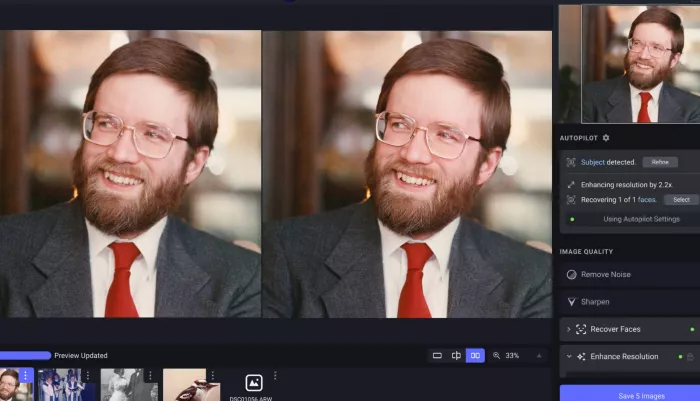
Best for: Photographers, creators, ecommerce sellers, and bloggers who want sharper, cleaner, higher-resolution images without doing heavy manual editing.
Topaz Photo AI is built for people who care about image quality, not just quick filters. Its main strength is fixing common technical problems in photos, including blur, grain, low resolution, weak sharpness, and poor detail. It can sharpen soft images, reduce noise from low-light shots, recover faces, adjust lighting, improve color, and upscale photos, which makes it more serious than a basic browser-based enhancer.
The tool is especially useful when the original photo has enough detail to improve. For example, if you have a slightly blurry product image, a low-light travel photo, or a wildlife shot that looks noisy, Topaz Photo AI can clean it up and make it more usable for blogs, portfolios, online stores, or print. However, it is not the best choice for someone who only wants fast selfie edits or simple Instagram-style touch-ups. Some images also need manual checking because aggressive enhancement can make textures look too sharp or artificial.
Use it for:
● Sharpening soft or slightly blurry photos
● Reducing grain and noise in low-light images
● Upscaling images for blogs, portfolios, product pages, or print
| Pros | Cons |
| Strong detail recovery compared with basic online enhancers | May feel too advanced for casual users |
| Combines sharpening, denoising, face recovery, lighting, color, and upscaling tools | Pricing can feel high if you only edit photos occasionally |
| Useful for photographers, ecommerce sellers, bloggers, and serious creators | Some images need manual checking to avoid over-processing |
| Works well for photos that need technical cleanup, not just filters | Not ideal for stickers, casual filters, or quick social media edits |
Pricing: Topaz lists Topaz Photo starting around $17/month. Its broader Topaz Studio plan is listed at $69/month for monthly billing, with lower annual-billed options available.
Verdict: Choose Topaz Photo AI if image quality matters more than speed or simplicity. Skip it if you only need casual selfie fixes or free one-click edits.
2. Remini
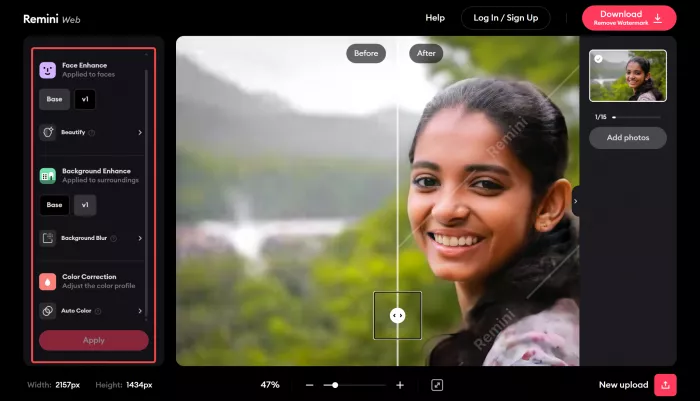
Best for: Users who want to improve faces, old family photos, blurry portraits, and low-quality personal images.
Remini is one of the most popular AI photo enhancement tools for face recovery. It is not trying to be a full professional editing suite. Its strongest appeal is simple: upload a blurry, old, pixelated, or low-quality portrait, and the tool tries to make the face look clearer and more defined. This makes it attractive for people restoring old family photos, improving profile pictures, or fixing images saved from older phones.
Where Remini works well, the result can feel impressive because it adds clarity to eyes, skin, hair, and facial structure. But that strength is also its risk. Face enhancement tools can sometimes change a person’s natural look, smooth skin too much, or make older photos look less authentic. For memory-based images, users should check whether the enhanced version still feels like the real person rather than a polished AI interpretation.
Use it for:
● Restoring old portraits and family photos
● Enhancing blurry selfies or profile pictures
● Improving face clarity in low-resolution images
| Pros | Cons |
| Very easy to use for non-technical users | Can make faces look too smooth or slightly changed |
| Strong at face-focused photo enhancement | Less useful for landscapes, products, and detailed object photos |
| Good for old, blurry, or pixelated personal images | Free version usually has limits, ads, or watermarks |
| Mobile-first experience suits casual users | Pricing can feel expensive because many plans are weekly |
Pricing: Remini pricing varies by app store, region, and plan. Public pricing references often list personal plans from around $6.99/week, while business-oriented plans may be higher.
Verdict: Choose Remini if your main problem is a blurry face or an old portrait. Skip it if you need product photo cleanup, realistic texture control, or professional image editing.
3. Let’s Enhance
Best for: Upscaling photos for websites, ecommerce listings, print, and marketing visuals.
Let’s Enhance is built around a practical need: making images larger, cleaner, and more usable without losing quality. It is a strong choice when a photo is too small for a product page, blog cover, print layout, or marketplace listing. Instead of only adding brightness or contrast, it focuses on resolution, sharpness, color correction, and detail recovery.
This makes it especially useful for ecommerce sellers, designers, bloggers, and small businesses that often work with imperfect image files. For example, if a product photo looks too small or compressed for an online listing, Let’s Enhance can upscale it and improve the presentation. It is not the most creative photo editor, and it is not built for heavy manual retouching. Its value is in turning weak source images into cleaner, more publishable assets.
Use it for:
● Upscaling small or compressed images
● Preparing ecommerce photos for listings
● Improving blog covers, print files, and marketing images
| Pros | Cons |
| Strong focus on image upscaling and resolution improvement | Credit-based pricing can run out quickly for heavy users |
| Useful for ecommerce, print, and web visuals | Not a full creative editor like Canva or Picsart |
| Free credits make it easy to test before paying | Results depend heavily on original image quality |
| Good fit for users who need clean, practical enhancement | Less useful for advanced manual photo correction |
Pricing: Let’s Enhance offers 10 free credits after signup. Paid plans start at $9/month when billed annually for 100 credits, or $12/month on monthly billing.
Verdict: Choose Let’s Enhance if your biggest issue is resolution. It is a better fit for product images and web assets than for casual selfies or artistic edits.
4. VanceAI
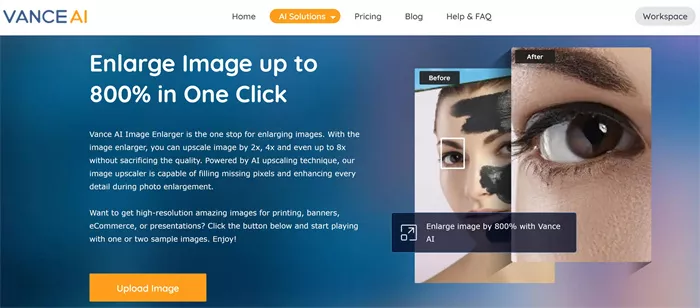
Best for: Users who want several AI photo repair tools in one place, including enhancer, upscaler, denoiser, sharpener, and old photo restoration.
VanceAI works like a toolkit rather than a single-purpose enhancer. It includes tools for image enhancement, upscaling, sharpening, denoising, background removal, portrait retouching, and old photo restoration. This makes it useful for people who do not want to subscribe to separate tools for every image problem.
The tool is practical for users who process many different image types. A blogger might use it to sharpen article images, an online seller might use it for product cleanup, and a casual user might use it to restore an old picture. The tradeoff is that the experience can feel more tool-based than polished. You may need to choose the right function instead of expecting one automatic button to fix everything perfectly.
Use it for:
● Enhancing and upscaling mixed image types
● Restoring old photos and fixing image noise
● Batch processing and quick online image cleanup
| Pros | Cons |
| Offers many AI photo tools under one platform | Interface can feel less polished than mainstream editors |
| Useful for enhancement, upscaling, denoising, sharpening, and restoration | Credit system may be confusing for first-time users |
| Good for users who need regular image cleanup | Not always as refined as premium specialist tools |
| Can work for personal, blog, ecommerce, and creative use cases | Output quality can vary depending on which tool is used |
Pricing: VanceAI pricing starts around $4.95/month for 100 credits. It also supports pay-as-you-go credit options, and credits are used across different AI tools.
Verdict: Choose VanceAI if you want a flexible AI photo enhancement toolbox at a lower starting price. Skip it if you want the most polished editing interface or the highest-end professional output.
5. Fotor AI Photo Enhancer
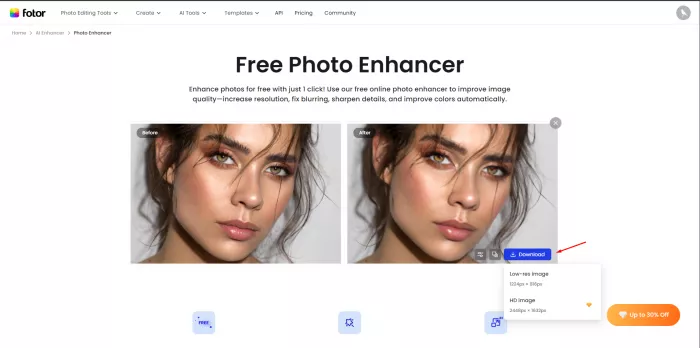
Best for: Beginners who want fast photo improvement without learning professional editing software.
Fotor is a good fit for users who want simple enhancement, not a technical editing workflow. Its AI Photo Enhancer can improve image quality, reduce blur, adjust lighting, sharpen details, and make images look cleaner with very little effort. It is useful for casual creators, students, bloggers, small business owners, and anyone who wants photos to look better quickly.
The main reason Fotor works well is accessibility. It combines AI enhancement with regular editing tools, templates, collage features, portrait retouching, and design assets. That makes it more flexible than a single photo repair tool. The limitation is that it may not recover detail as deeply as Topaz or upscale as purposefully as Let’s Enhance. It is better for everyday improvement than serious image rescue.
Use it for:
● Quick one-click photo enhancement
● Fixing brightness, blur, and basic image quality
● Creating simple social media, blog, or personal visuals
| Pros | Cons |
| Beginner-friendly and easy to use | Not as powerful as specialist enhancement tools |
| Free plan available for basic use | Some exports may be watermarked or limited on free plan |
| Combines AI enhancement with editing and design tools | Advanced AI features require paid plans |
| Good for casual creators and small businesses | Not ideal for professional photographers needing deep control |
Pricing: Fotor has a free Basic plan. Fotor Pro is listed from $8.99/month, while Fotor Pro+ is listed from $19.99/month.
Verdict: Choose Fotor if you want a simple photo enhancer that also gives you design and editing tools. Skip it if you need advanced denoising, precise RAW editing, or high-end detail recovery.
6. Picsart AI Image Enhancer
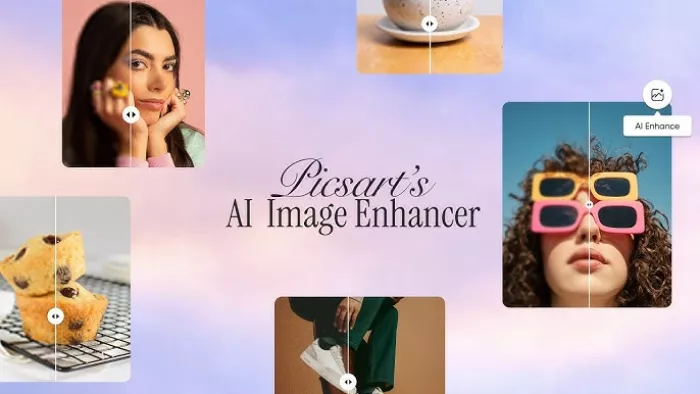
Best for: Social media creators, mobile editors, and users who want enhancement plus creative editing in one place.
Picsart is not only a photo enhancer. It is a full creative editing platform built around social content, design assets, AI tools, stickers, templates, filters, background editing, and quick visual creation. Its AI Image Enhancer is useful when you want to make a photo clearer and more shareable without opening a complex editing program.
The tool works best for creators who care about the final look of content, not just technical image repair. For example, if you are making a post, thumbnail, story graphic, or profile visual, Picsart gives you enhancement tools and creative options in the same workflow. However, if your goal is natural, professional-grade recovery of a noisy or blurry camera image, Picsart may not be the strongest option. It is better for share-ready visuals than precision photography work.
Use it for:
● Improving social media photos
● Enhancing images before adding text, stickers, or design effects
● Creating profile images, thumbnails, and casual brand visuals
| Pros | Cons |
| Strong creative editing ecosystem | Not focused only on realistic photo enhancement |
| Good for mobile-first creators and social media workflows | AI credit limits may affect heavy users |
| Includes image enhancer, background tools, templates, and design assets | Can feel crowded if you only want one simple enhancer |
| Free lower-resolution exports are available | Some premium features need a paid subscription |
Pricing: Picsart has a free tier. Picsart Pro pricing varies by region, but public pricing commonly starts around $7/month when billed annually. Some regions show different monthly pricing and higher Ultra plans.
Verdict: Choose Picsart if you want to enhance photos and then turn them into social content. Skip it if you only care about realistic restoration, print-quality upscaling, or professional camera work.
7. Canva AI Photo Editor
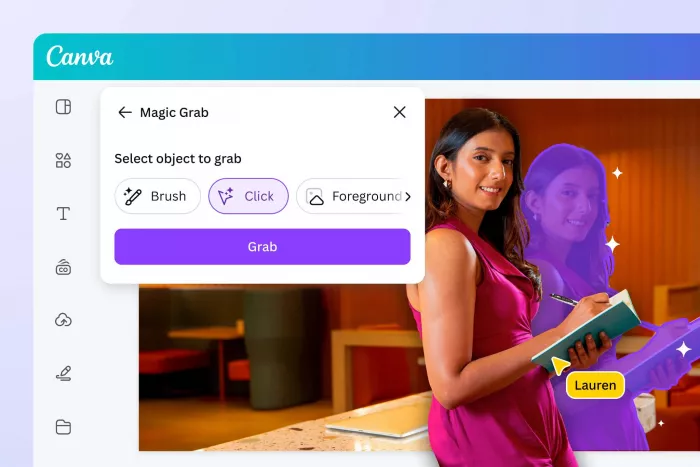
Best for: Bloggers, marketers, small businesses, and creators who want photo cleanup inside a design workflow.
Canva is the best option on this list for people who enhance photos because they need to use them somewhere immediately. That could be a blog cover, Instagram post, presentation, YouTube thumbnail, product flyer, portfolio page, or ad creative. Its photo tools are not meant to replace Photoshop, but they are highly practical for everyday publishing.
Canva’s value is workflow. You can clean up an image, remove a background, adjust it, place it inside a template, add brand colors, resize it, and export it for different platforms without leaving the same editor. For users who publish often, that convenience matters more than advanced editing depth. The limitation is that Canva is not a specialist photo repair tool. If an image is badly blurred, noisy, or low-resolution, a tool like Topaz, Let’s Enhance, or VanceAI may be better before bringing the image into Canva.
Use it for:
● Enhancing photos for blog covers, thumbnails, and social posts
● Removing backgrounds and preparing branded visuals
● Quick visual design after basic image cleanup
| Pros | Cons |
| Excellent for turning enhanced photos into finished designs | Not the strongest tool for deep image restoration |
| Beginner-friendly and fast | Some AI tools and premium assets require Canva Pro |
| Useful for bloggers, marketers, teams, and creators | Less control than Photoshop or Lightroom |
| Free plan is useful for basic design and editing | Serious photo repair may need another tool first |
Pricing: Canva has a free plan. Canva Pro pricing varies by region. In the US, it is commonly around $15/month, while regional pricing may differ.
Verdict: Choose Canva if your enhanced photo needs to become a finished design quickly. Skip it if you need serious photo restoration, technical sharpening, or professional-level color correction.
8. Adobe Photoshop and Lightroom AI Tools
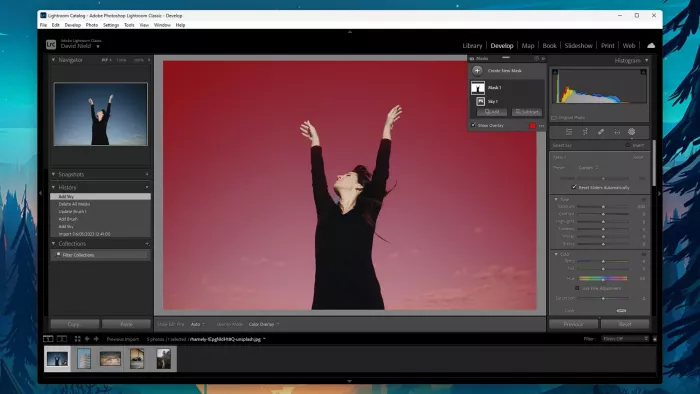
Best for: Photographers, editors, and professionals who want AI assistance without giving up manual control.
Adobe’s Photoshop and Lightroom tools are not simple one-click enhancers in the same way as Remini or Fotor. They are better understood as professional editing environments that now include AI features. Lightroom is strong for photo correction, organization, color, lighting, masking, denoising, and batch editing. Photoshop is stronger for detailed retouching, object removal, generative edits, compositing, and advanced image manipulation.
This is the best option for users who do not want AI to make every decision. A photographer can use Lightroom to reduce noise, correct exposure, improve color, and manage large photo sets. A designer or retoucher can use Photoshop to remove distractions, rebuild parts of an image, or make deeper corrections. The downside is learning curve. Adobe tools are powerful, but they are not the fastest option for someone who only wants to clean up one old photo.
Use it for:
● Professional photo editing and retouching
● AI-assisted object removal, denoising, masking, and correction
● Managing large photo libraries and advanced editing workflows
| Pros | Cons |
| Strong professional control over image quality | Higher learning curve than one-click AI enhancers |
| Lightroom is excellent for photo organization and correction | Subscription pricing may not suit casual users |
| Photoshop gives deeper retouching and generative editing options | Can feel excessive for simple photo fixes |
| Good for photographers, studios, and serious creators | Some AI features depend on credits and plan limits |
Pricing: Adobe Lightroom starts at $11.99/month on an annual billed monthly plan in the US. Adobe’s Photography plan, which includes Photoshop and Lightroom, is commonly listed around $19.99/month with annual billing.
Verdict: Choose Adobe if you want AI enhancement plus professional control. Skip it if you want a fast, simple, low-cost tool for occasional photo fixes.
Which AI Photo Enhancer Should You Choose?
The easiest way to choose is to start with the photo problem, not the brand name. A blurry face, a small product image, a noisy camera shot, and a social media graphic are four different problems. One tool will not solve all of them equally well.
| Your Main Need | Best Tool to Try First |
| Serious sharpening, denoising, and upscaling | Topaz Photo AI |
| Old face photos and blurry portraits | Remini |
| Upscaling product photos or web images | Let’s Enhance |
| Multiple AI repair tools at a lower starting price | VanceAI |
| Quick beginner-friendly enhancement | Fotor |
| Social media photo improvement | Picsart |
| Blog covers, thumbnails, and branded visuals | Canva |
| Professional photo editing and retouching | Adobe Photoshop and Lightroom |
For casual users, Fotor, Canva, Picsart, and Remini are the easiest places to start. They do not require much editing knowledge, and they work well for everyday photos. For ecommerce sellers and bloggers, Let’s Enhance and VanceAI are more practical because they focus on image quality, upscaling, and repeatable cleanup. For photographers and serious creators, Topaz Photo AI and Adobe’s tools are stronger because they offer better control and higher-quality recovery.
Final Verdict
The best AI photo enhancement tool is not the one with the longest feature list. It is the one that fixes the exact weakness in your image without making the result look fake.
Topaz Photo AI is the strongest choice for serious image cleanup. Remini is the easiest option for face enhancement and old portraits. Let’s Enhance is practical for upscaling images for ecommerce, blogs, and print. VanceAI is useful if you want several repair tools under one subscription. Fotor is best for beginners who want fast improvements. Picsart is better for social media creators who want enhancement plus creative editing. Canva is ideal when the photo needs to become a finished design. Adobe Photoshop and Lightroom remain the best fit for professionals who want AI support without losing manual control.
If you only edit photos occasionally, start with a free or low-cost tool before paying for a heavy subscription. If your photos are part of your business, portfolio, product listings, or client work, paying for a stronger tool can save time and produce cleaner results.



Comments