Subtitles are no longer optional. They decide whether people can follow your content on mute, whether your Shorts get rewatched, and whether your videos stay accessible across languages. AI subtitle generators now handle transcription, timing, and even styling, so you can stop manually captioning frame by frame.
In this guide, you’ll find 8 of the best AI tools for subtitle generation in 2026, who they’re best for, what makes each stand out, core features, starting prices (with free plans where available), plus a clear pros‑and‑cons view.
1. HappyScribe
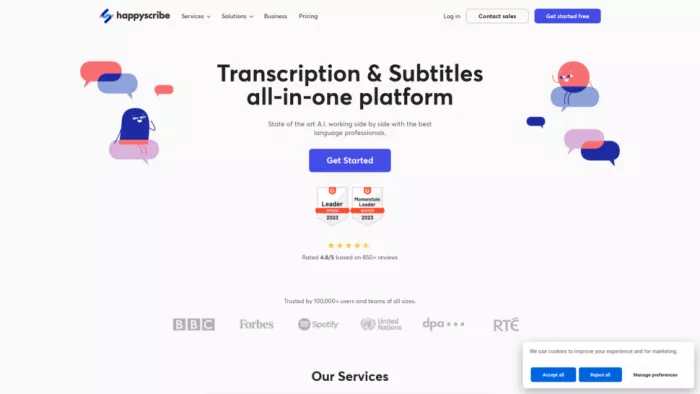
HappyScribe is a dedicated transcription and subtitle platform built for accuracy, export flexibility, and team workflows.
Who is it best for?
Agencies, course creators, and serious YouTubers who need accurate subtitles in many languages and proper export formats like SRT, VTT, and editor‑ready files.
What makes it stand out
HappyScribe combines a strong AI subtitle engine with a subtitle‑specific editor: waveform view, fine timing control, CPS (characters‑per‑second) visibility, and collaboration spaces. When you need broadcast‑level quality, you can switch to human‑made subtitles for even higher accuracy.
Key features
● Automatic subtitle generation in a large set of languages and dialects.
● Online subtitle editor with waveform and precise timing tools.
● Export to SRT, VTT, TXT and formats for Premiere, Final Cut and more.
● Option to burn subtitles into video or keep them as separate files.
● Team workspaces and shared projects for multi‑user workflows.
Pricing (with starting amount)
● Free trial: Yes (limited minutes to test).
● AI subtitles: Starts around 9 USD/month on a subscription with capped minutes.
● Human‑made services: Priced per minute on top, typically several USD per video minute.
Pros and cons
| Pros | Cons |
| Very strong language coverage and good accuracy. | Per‑minute billing can get expensive for big libraries. |
| Editor built specifically for subtitle workflows. | Overkill for casual, one‑off captioning. |
| Many export formats for pro editing software. | No flashy social templates or effects built‑in. |
| Option for human‑level subtitle quality. |
2. VEED.io
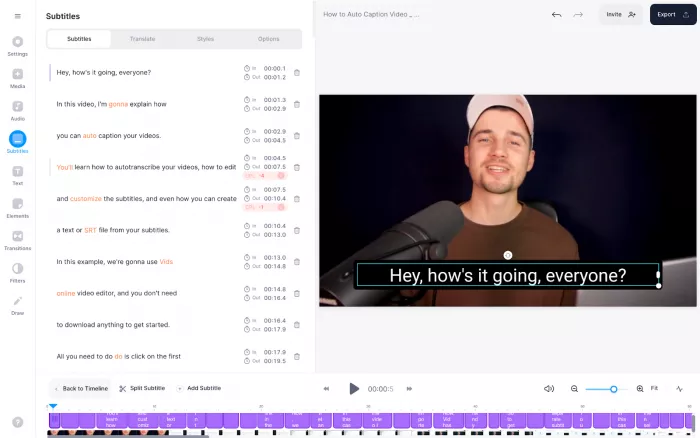
VEED is an online video editor with one of the most popular auto‑subtitle generators for creators and marketers.
Who is it best for?
YouTubers, short‑form creators, and social media teams that want editing, captions, and simple graphics in one browser‑based interface.
What makes it stand out
Subtitles are fully integrated into the edit. You auto‑generate captions, tweak them in a transcript view or on the video, and instantly style them for TikTok, Reels, and Youtube Shorts with animated text and brand fonts. It’s built for feed‑first content.
Key features
● Auto subtitle generator with support for 120+ languages.
● One‑click styling of captions for short‑form platforms.
● Edit text either in a transcript pane or directly on the timeline.
● Option to burn subtitles into the video or export separate files.
● Full online editor for trimming, cropping, resizing, and overlays.
Pricing (with starting amount)
● Free plan: Yes (watermark + limits).
● Paid plans: Start around 12 USD/month for individuals, with higher tiers for teams and more export power.
Pros and cons
| Pros | Cons |
| Great fit for social‑first, short‑form workflows. | Free plan adds watermarks and usage limits. |
| Good language support for global audiences. | Heavy or long projects can feel slow in browser. |
| Easy visual styling of subtitles. | Less suited for rigid, enterprise compliance needs. |
| All‑in‑one editing reduces tool switching. |
3. Sonix
Sonix is a professional‑grade transcription and subtitle platform used by podcasters, agencies, and enterprises.
Who is it best for?
It is best for Podcast editing, webinar producers, and video teams that need accurate transcripts and subtitles, plus rich export and collaboration features.
What makes it stand out
Sonix focuses on fast, accurate speech‑to‑text with strong tools for managing long files: transcripts, subtitle timing, speaker labeling, and search. It’s very comfortable for teams working with interviews, episodes, and long‑form content.
Key features
● AI‑driven transcription and subtitle generation in many languages.
● Subtitle editor with timecodes and easy correction.
● SRT, VTT and additional export formats compatible with NLEs.
● Collaboration, project dashboards, and search across libraries.
● Speaker detection and content indexing for long‑form.
Pricing (with starting amount)
● Free trial: Yes (limited minutes).
● Paid plans: Typically start around 10 USD/month for light use, with higher plans for more hours and team features.
Pros and cons
| Pros | Cons |
| Strong for long‑form, professional content. | May feel overpowered for quick social clips. |
| Good combination of transcripts and subtitles. | Costs rise as monthly hours scale up. |
| Flexible exports and integrations. | Less focus on animated, social‑style caption looks. |
| Collaboration features for teams. |
4. Maestra
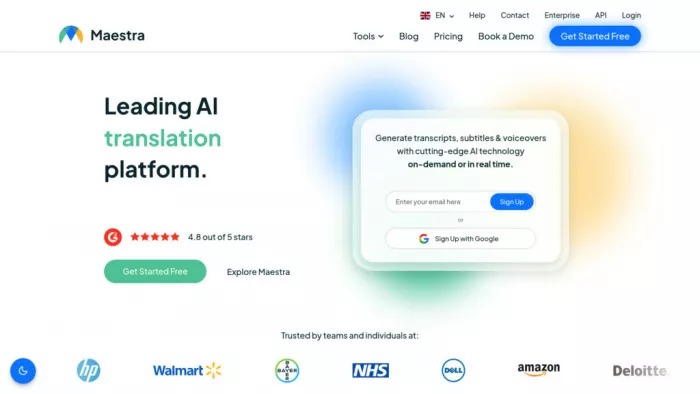
Maestra is an AI platform for subtitles, transcription, and dubbing, with a focus on watermark‑free outputs and multi‑language support.
Who is it best for?
Creators and agencies that want automatic subtitles and translations, plus the option to dub content into other languages.
What makes it stand out
Maestra is attractive because it offers automatic subtitles and translations without adding its own watermark on paid tiers, while also including dubbing tools. That combination makes it particularly good for turning one video into multilingual, ready‑to‑publish versions.
Key features
● Automatic subtitle generation and translation into many languages.
● Cloud subtitle editor to refine text and timing.
● Burned‑in subtitles or standard export formats.
● AI voiceover and dubbing to complement captions.
● Project organization and sharing for teams.
Pricing (with starting amount)
● Free tier/trial: Yes (with limits).
● Paid plans: Start from around 15 USD/month, then scale with minutes and advanced features; paid removes watermarks.
Pros and cons
| Pros | Cons |
| No‑watermark outputs on paid plans. | Free tier comes with usage restrictions. |
| Subtitles, translation, and dubbing in one place. | Interface can be heavier for casual users. |
| Strong fit for multilingual distribution. | Fewer flashy subtitle “skins” than some editors. |
| Team‑friendly project handling. |
5. OpusClip
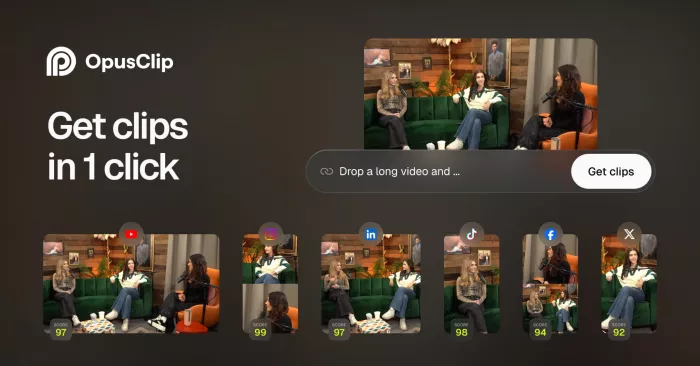
OpusClip is known for turning long‑form videos into short, social‑ready clips and subtitles are baked into that workflow.
Who is it best for?
Creators, coaches, and marketers who regularly publish podcasts, streams, or long videos and want to repurpose them into captioned shorts.
What makes it stand out
Instead of being a standalone subtitle tool, OpusClip automatically finds strong moments, chops them into clips, and adds subtitles and layouts optimized for vertical platforms. It’s built for repurposing, not just captioning.
Key features
● AI clipping from long videos plus auto subtitles.
● Vertical layouts, fonts, and motion‑style captions for social.
● Auto reframing for TikTok, Reels, and Shorts.
● Quick editing tools to tweak text and timing.
● Cloud processing and batch handling of episodes.
Pricing (with starting amount)
● Free plan: Yes (watermarked and limited).
● Paid plans: Typically start around 9 USD/month, scaling up for more clip minutes, credits, and no watermark.
Pros and cons
| Pros | Cons |
| Excellent for turning long‑form into subtitled clips. | Not ideal if you only need subtitle files without clips. |
| Short‑form‑optimized caption styles and layouts. | Less styling freedom than full video editors. |
| Big time saver for content repurposing. | Accuracy depends heavily on audio quality. |
| Low starting price with free tier. |
6. Clipchamp
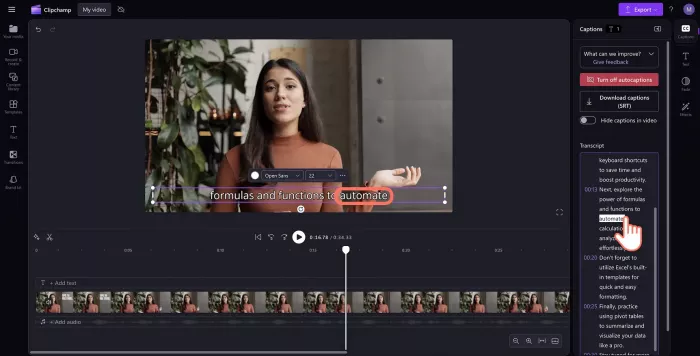
Clipchamp is a browser‑based editor (owned by Microsoft) with auto subtitles built for everyday business and creator use.
Who is it best for?
Small businesses, educators, and teams especially those using Microsoft 365 who want simple editing and subtitles without installing pro NLEs.
What makes it stand out
Clipchamp sits comfortably in a “prosumer” middle ground. The subtitle generator supports many languages and lives inside a straightforward editor, so it’s easy to add captions to training videos, social posts, and internal communications.
Key features
● Auto subtitle generation in 100+ languages.
● Editable transcript and captions on a simple timeline.
● Downloadable text transcript as well as on‑video captions.
● Drag‑and‑drop editor for basic cuts, overlays, and branding.
● Fits neatly into Microsoft‑centric workflows.
Pricing (with starting amount)
● Free plan: Yes (with resolution and asset limits).
● Paid plans: Often start from about 11 USD/month, or are bundled in some Microsoft 365 plans for business users.
Pros and cons
| Pros | Cons |
| Very approachable interface for non‑editors. | Subtitle styling and controls are fairly basic. |
| Strong language coverage for general use. | Less powerful than dedicated subtitle platforms. |
| Good fit for office, education, and internal videos. | Browser can struggle with very large projects. |
| Free option for light projects. |
7. Descript
Descript is a transcript‑first audio/video editor where subtitles are generated automatically from the same transcript you edit.
Who is it best for?
Podcasters, educators, and YouTubers who want to edit by editing text, then publish subtitled videos and clips from that workflow.
What makes it stand out
Descript lets you edit media like a document, cut a sentence in the transcript, and the video edit updates. Subtitles come directly from that transcript, so they’re tightly synced, and you can quickly make captioned clips for social platforms.
Key features
● Automatic transcription and subtitle generation.
● Text‑based editing: change words, change the edit.
● Burned‑in subtitles with adjustable fonts and styles.
● Multi‑track editing, screen recording, and overdub.
● Good for turning long recordings into subtitled snippets.
Pricing (with starting amount)
● Free plan: Yes (limited hours and exports).
● Paid plans: Start around 15 USD/month per user, with larger quotas and collaboration on higher tiers.
Pros and cons
| Pros | Cons |
| Efficient transcript‑driven editing and subtitling. | Learning curve is steeper than simple caption tools. |
| Ideal for podcasts, webinars, and talking‑head videos. | More features than some lightweight users require. |
| One environment for editing, transcripts, and captions. | Requires a mindset shift if you’re used to classic NLEs. |
| Generous free tier to test the workflow. |
8. Canva (for styled “subtitle” overlays)
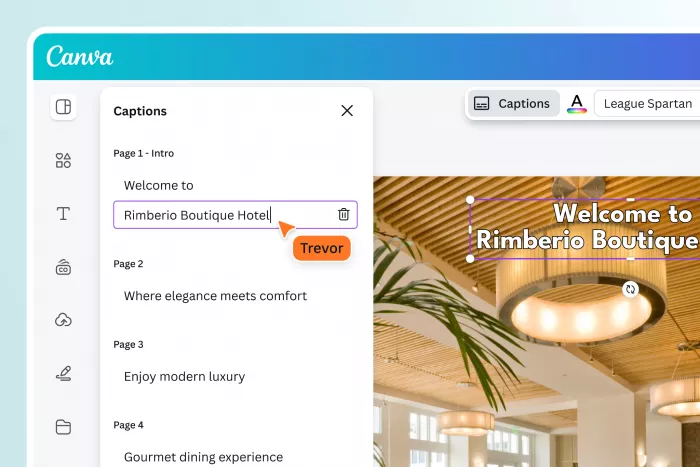
Canva doesn’t do automatic speech‑to‑text yet, but it’s one of the easiest ways to add attractive subtitle‑style text overlays once you have a transcript.
Who is it best for?
Creators and marketers who already use Canva and want fast, branded subtitles for short videos, using text from another AI subtitle tool.
What makes it stand out
Canva’s strength is design speed. Drop your video in, paste text, and you can create clean, on‑brand subtitle bars in minutes with your fonts, colors, and logo. It’s the perfect finishing step on top of a dedicated subtitle generator.
Key features
● Simple timeline to align text with video moments.
● Huge library of text styles and social video templates.
● Brand kits to keep fonts, colors, and layouts consistent.
● Easy export for Reels, Shorts, stories, and feed videos.
● Works well with SRT or transcript text from other tools.
Pricing (with starting amount)
● Free plan: Yes (very capable for small teams).
● Pro plan: Starts at about 13 USD/month for individuals, with higher prices for multi‑user teams.
Pros and cons
| Pros | Cons |
| Extremely easy way to create branded subtitle overlays. | No automatic speech‑to‑text; needs external transcripts. |
| Huge template and style library. | Manual sync can be time‑consuming for long content. |
| Great complement to AI subtitle engines. | Not suitable when you need proper SRT/VTT files. |
| Strong free tier and affordable Pro plan. |
Final Verdict: How to Choose Your Subtitle Stack
If accuracy and professional delivery are your main priorities, think courses, clients, and accessibility start with a dedicated engine like HappyScribe or Sonix, and then optionally style captions further in Canva or your NLE. If you live in short‑form and social, VEED, OpusClip, or Descript give you subtitles wrapped into editing and clipping workflows, which saves huge amounts of time.
For everyday business and internal communication, Clipchamp (especially if you’re already on Microsoft 365) offers a simple, integrated way to get clean subtitles on training and internal videos. And if design and brand consistency are your edge, pairing any AI subtitle generator with Canva for visual polish is often the most efficient combo.



Comments